
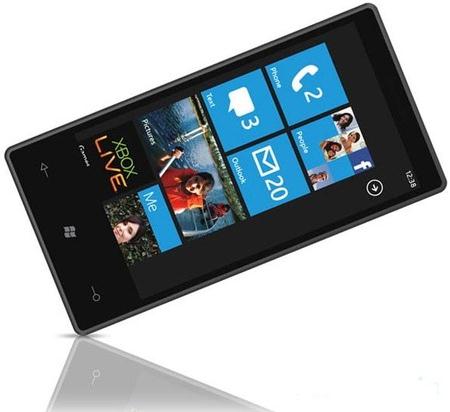
Recently Windows has released an update to Windows Phone 7 and smart phones which are run by Windows operating system. Unfortunately the said update is causing a Windows Phone 7 to brick. Here is a guide on how to fix bricked Windows Phone 7.
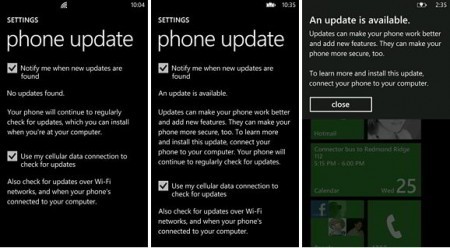
When we say “brick” or “bricked”, it means your gadget or phone can no longer be used, just like a brick. Microsoft also admits that there are Window Phone 7 that got bricked due to the update. So here is how you can fix it.
WARNING: Microsoft strongly recommends that you return your “bricked” phone to store for warranty. But if that is not option for you then you can try this fix with CAUTION. This process is risky and it could void your phone’s warranty. Warning has been given so try this at your own risk.
How to Fix Bricked Windows Phone 7 Phone:
1. Disconnect the USB from your computer.
2. Shut off your phone.
3. Turn on phone using 3 buttons. Press the power, camera and volume up/down rocker all together. Hold it for 10-15 seconds. Do not release when it asks if you want to format the SD card.
4. Keep holding until it says “download mode”. This will reinstall the OS.
5. If phone does not reboot in 15 minutes switch off you phone and turn it on again.
6. Re-setup phone, update firmware through Zune software and then re-sync your documents, music, pictures, videos, etc.
How to fix bricked Samsung Omnia 7 Windows Phone:
1. Check if the phone is capable of getting into the ‘download mode’. To do this: Turn off the phone (or remove > replace battery), then turn it back on by pressing the power/camera/VolumeUP buttons simultaneously. When the phone turns on, release the power button. If the phone shows the yellow triangle with exclamation and a “download mode” message, your phone is capable of getting into the ‘download mode’, and you can proceed to step 2.
2. Download the following files (be warned: multiupload.com is loaded with huge ad’s/pop-ups)
– Firmware I8700XXJK1 ## 2010 November CSC_Cetus_Europe_I8700XENJK1: http://www.multiupload.com/OGUYF4F3VA (rar-file password: samfirmware.com)
– Samsung WP7 Flash Program: http://www.multiupload.com/3OE4SYAGQA
– Samsung Mobile USB Drivers V5.2: http://www.multiupload.com/GH391NDSY1
– Flash Guide (English): http://www.multiupload.com/FDRJ3WDZQ7
3. Unrar / install downloaded files (rar-file password: samfirmware.com)
4. Make sure the phone is disconnected from computer and turned off
5. Reboot computer for the drivers to complete install.
6. Start Samsung WP7 Flash Program.
7. Turn on the phone in ‘download mode’ and then connect it to the computer
8. Drag the 4 files from the unpacked firmware rar-file to the Samsung WP7 Flash Program dialog screen. The application will place each file in the correct field.
9. When the phone is recognized you can use the ‘Start’ button to start the flashing process.DO NOT INTERRUPT THIS PROCESS!
10. When the flashing is done (aprox. 15min.) the phone will automatically reboot and show the welcome screen.
Note: For more information about flashing the firmware to your Omnia 7 see the the flash guide you downloaded as well
Source: Got a “bricked” Samsung Omnia 7 Windows Phone? Here’s the fix
Leave a Reply